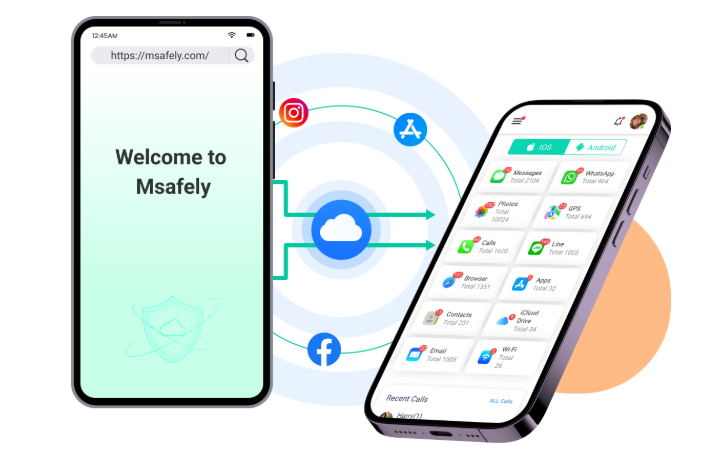
Step By Step Guide On How To Use msafely App To Track Someone's Phone
STEP BY STEP GUIDE FOR ANDROID PHONE
If you're looking to monitor an Android device, there are two ways to do it with Msafely: using the **Google Account** method (no app installation needed) or the **APK Solution** (which requires installing an app on the target phone). Let me walk you through both options step by step.
---
###  **Option 1: Google Account Method (No App Installation Needed)**
This is the easiest and most discreet way to monitor an Android device, as no app needs to be installed on the target phone.
#### Step-by-Step Guide:
1. **Log in to Your Msafely Dashboard**
Go to [https://msafely.com/login](ht
2. **Select the Android Plan**
On the dashboard, choose the "Android" option and select the Google Account monitoring plan.
3. **Enter the Target Device’s Google Account Info**
Input the **Google account email and password** of the Android device you want to monitor.
4. **Complete Two-Step Verification**
If the target device has 2-step verification enabled, you'll need to:
- Log in to the Google account on the target device.
- Confirm the login request from the Msafely dashboard.
5. **Start Monitoring**
Once verified, the data will start appearing in your Msafely dashboard. You can view things like:
- SMS messages
- Call logs
- Photos
- Emails
- Browser history
- And more!
---
### **Option 2: APK Solution (Requires Installing an App on the Target Phone)**
If you prefer to install an app on the target device, this is also an effective and easy method.
#### Step-by-Step Guide:
1. **Log in to Your Msafely Dashboard**
Go to [https://msafely.com/login](ht
2. **Select the Android Plan**
Choose the "Android" option and select the **APK** monitoring plan.
3. **Download the Msafely APK File**
On the dashboard, download the Msafely APK file.
4. **Install the APK on the Target Device**
Transfer the APK file to the target Android phone and install it. Make sure **"Unknown Sources"** are allowed in the phone's settings.
5. **Complete the Authorization Process**
Open the app and follow the on-screen instructions to authorize the monitoring.
6. **Start Monitoring**
After authorization, all the data will appear in your Msafely dashboard. You can now view:
- Text messages
- Call logs
- Social media activity
- GPS location
- And much more!
---
###  Tips:
Tips:
- The **Google Account method** is ideal if you don’t have physical access to the target phone.
- The **APK method** gives you more control and access to additional features.
- You can always switch between the two methods based on what works best for you.
STEP BY STEP GUIDE FOR iPHONE
Since the target device is an iPhone, we'll walk through how to use **Msafely's iCloud solution**, which doesn't require any physical access or app installation on the target phone. This method is discreet, easy, and very effective.
---
### Step-by-Step Guide to Use Msafely on iPhone (iCloud Method)
####  Step 1: Log in to Your Msafely Dashboard
Go to [https://msafely.com/login](ht
>  If you don’t have an account yet, you can sign up at [https://msafely.com/sign-up](
---
#### Step 2: Select the iPhone Plan
On the dashboard, choose the "iPhone" option and select the **iCloud** monitoring plan.
---
#### Step 3: Enter the Target iPhone’s iCloud Account Info
Input the **Apple ID (iCloud email)** and **password** of the iPhone you want to monitor.
> Make sure you have access to the target iPhone’s iCloud account — this is essential for the setup.
---
#### Step 4: Complete Two-Step Verification
If the target iPhone has two-step verification enabled, you’ll need to:
1. Log in to the iCloud account on the target iPhone.
2. Confirm the login request from the Msafely dashboard.
This ensures that the account is authorized and secure.
---
#### Step 5: Start Monitoring
Once verified, all the data will begin appearing in your Msafely dashboard. You can now view:
- Text messages
- Call logs
- Location history
- Photos
- Emails
- Browser history
- Social media activity (e.g., WhatsApp, Kik, etc.)
- And more!
---
### Tips:
- The **iCloud method** is completely invisible — the person won’t know their phone is being monitored.
- You don’t need to have the target phone in your possession.
- The process is fast and takes just a few minutes to set up.