How To Remote Access, View and Control Android Devices and Tablets
In today's fast-paced digital world, the ability to remotely access, view, and control Android phones and tablets has become increasingly important. Whether you're troubleshooting issues, providing technical support, or simply managing your devices from afar, remote access solutions offer unparalleled convenience and flexibility.
What is Android Remote Control?
Android remote control allows IT teams, support technicians, and businesses to remotely view, access, and control Android devices from a computer or another mobile device. This capability is essential for providing tech support, managing enterprise devices, and troubleshooting issues in real-time.
Splashtop offers two types of Android remote control to suit different needs: attended access and unattended Android access:
Feature | Attended Access | Unattended Access |
Available in | Splashtop Enterprise, Splashtop Remote Support | Splashtop Enterprise |
Requires an end-user on the remote Android device? | Yes | No |
Best for | IT support, troubleshooting | Managing company-owned devices, kiosks, IoT, and other Android devices |
Setup required | End-user installs and runs app, tells tech the access code | Install Splashtop Streamer on the Android device |
Example use case | Employee calls IT for help | IT manages devices in multiple locations |
1. Attended Access (On-Demand Support)
Attended remote access allows IT teams to remotely connect to an Android device while the user is present. This is ideal for help desks and IT support teams assisting employees, customers, or clients with technical issues.
Available in both the SOS and Enterprise tiers of the Splashtop Remote Support license, you can remote view Android device screens in real-time and remote access/control Android devices running Android 8 or later as well as other Android-based phones and tablets from Samsung, LG, and Lenovo. Splashtop Remote Support is a remote access/support solution for IT, help desk, and support professionals to provide quick, attended support on Android, Windows, and Mac.
2. Unattended Access (Anytime Access and Management)
Unattended remote access enables IT teams and businesses to access and control Android devices anytime, even when no one is on the device. This is ideal for managing company-owned mobile devices, kiosks, point-of-sale (POS) systems, and other unattended deployments. Unattended Android access is only available in Splashtop Enterprise.
The Enterprise Remote Access license is also ideal for remotely accessing your own unattended Android devices to work remotely.
By offering both attended and unattended remote access, Splashtop provides flexible and secure solutions for Android device management, whether you need on-demand troubleshooting or always-on remote control.
How to Remotely View Android Tablet and Android Phone Screens for Attended Access
Get Splashtop Remote Support
Sign up for Splashtop Remote Support to remotely view an Android device with your Windows or Mac computer or from another Android device. You can use the service with a free trial or low-cost paid subscription.
Splashtop Remote Support is a great value and costs much less than other attended support tools. It is based on proven Splashtop remote access technology, used by more than 20 million users worldwide.
Download the SOS app on the device that you want to view or control
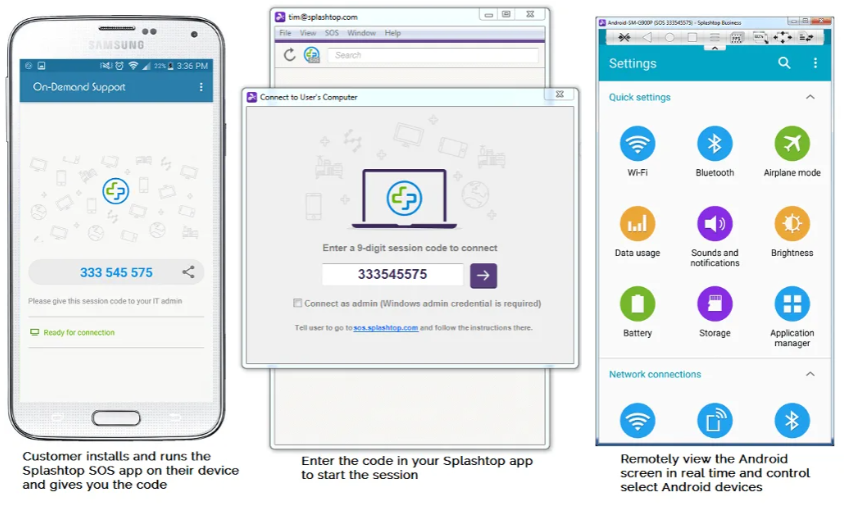
Have your end-user go to the Splashtop SOS app download link (as displayed in your Splashtop app) from their Android device to download, install and run the SOS App.
When you (or your customer) run the SOS app on the Android device it will display a session code that you will enter on your screen to remotely view that device. Users with devices running Android 8 or higher will be prompted to turn on accessibility in Android to allow remote access.
Users with certain devices (LG, Lenovo) may be prompted to also download an add-on from the Google Play Store to add remote access to certain Android device families.
Enter the code in your Splashtop Business app and start remote viewing the Android screen
Run the Splashtop Business app on your computer and click the SOS (plus sign) icon near the top of the app to open the SOS connect screen. Enter the nine-digit code displayed in the SOS app on your customer's Android device. When you click the arrow, the session will begin.
At this point you will be able to live-view their Android screen in a window on your computer screen.
The image below shows a view of the end user's Android screen, the technician’s interface, and viewing the Android during remote connections screen in a window on the computer screen with the controls expanded
Using the Viewing Controls
Click the arrow at the top of the mirrored device screen window to access the controls. The buttons are:
- Disconnect
- Back (device control)
- Home (device control)
- Menu (device control)
- FPS streaming quality
- Scaled/Original size toggle
- Full Screen
- File transfer
You can also take print screens of the Android screen using the standard print screen key combinations for your Windows or Mac computer.
Disconnecting the Session
When the session is complete, you can close the viewer window on your computer. The session can be closed on the device you are viewing by clicking the X disconnect button.
How to Set Up Unattended Remote Access for Android Devices
With Splashtop, you can remotely access and manage Android devices even when no one is physically present with the device. This is especially useful for IT teams supporting remote workers, kiosks, digital signage, or shared company devices.
To set up unattended remote access for Android phones and tablets:
- Install the Splashtop Streamer for Android: On the Android device you want to access, download and install the Splashtop Streamer app from the Google Play Store. Or, in the my.splashtop console you can generate a shareable link to download the installer where the deployment code is automatically applied when it's installed.
- Configure device permissions: Grant the necessary permissions, including accessibility access and remote control support (if the device manufacturer allows it). Some devices may require an add-on for full remote control capabilities.
- Access the device remotely: From your desktop or mobile Splashtop app, you can now view and, if supported, control the Android device anytime. Features such as screen sharing, remote control, file transfer, and device info access are available based on the device's capabilities.
Splashtop's unattended access for Android is secure, efficient, and designed for business-grade support scenarios. It helps IT teams streamline remote troubleshooting, device monitoring, and application maintenance, without needing the end user to initiate a session.