Desktop PC Power On and Fan Speeding Up Automatically, How To Troubleshoot?
When your desktop PC powers on but the fan speeds up and the system gets stuck (without fully booting up), it could indicate a few potential issues. Here's a focused approach to help you troubleshoot and fix it:
1. Power Cycle the System
-
Turn off the PC completely.
-
Unplug the power cable from the power supply.
-
Press and hold the power button for 10 - 15 seconds to drain any residual power from the motherboard.
-
Plug the power back in and try to turn the PC on again.
2. Check the RAM
-
Reseat the RAM: Power off the PC, unplug it, and remove the RAM sticks. Reinsert them securely back into their slots.
-
If you have multiple RAM sticks, try booting with just one stick at a time to see if a specific one is faulty.
-
If you have access to spare RAM, try swapping them to rule out faulty RAM.
3. Inspect the CPU and Heatsink
-
A loose or improperly seated heatsink could cause overheating and system instability.
-
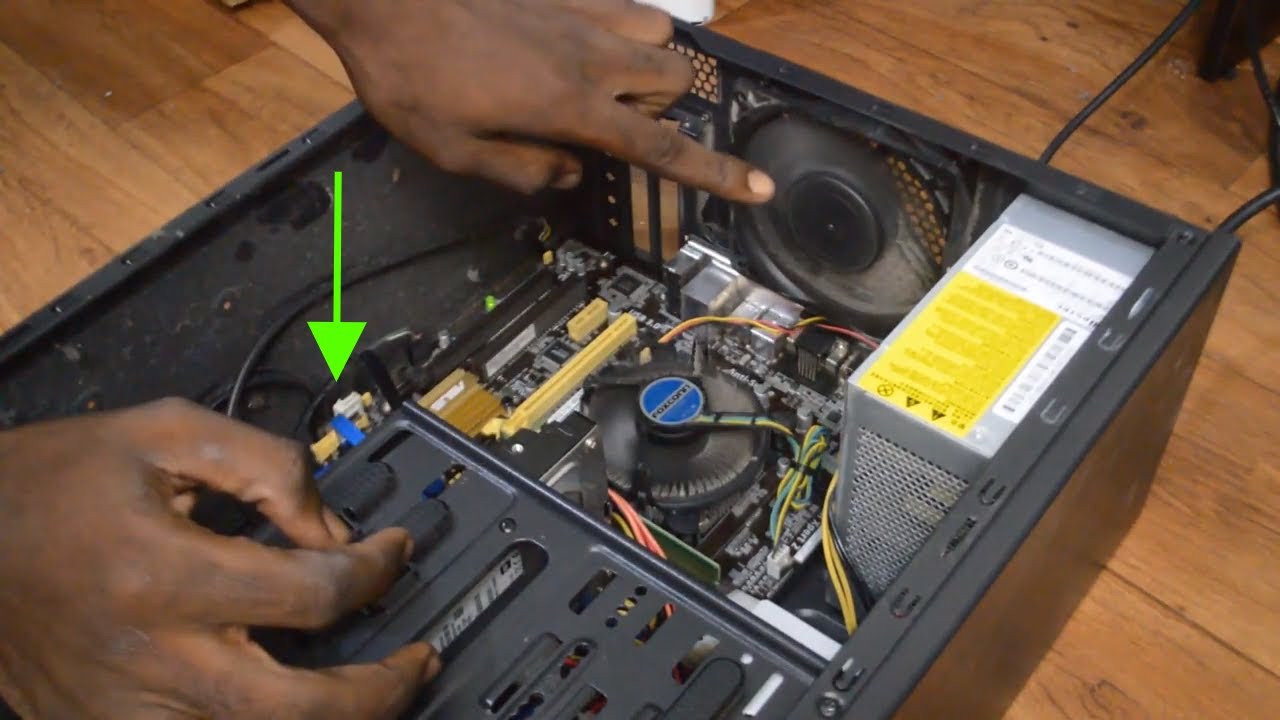
Turn off the PC, and check if the CPU cooler (heatsink and fan) is securely attached.
-
If you're comfortable, remove and reapply thermal paste to ensure the CPU is cooling properly.
-
Clean any dust from the CPU fan and heatsink area, as it could be causing overheating.
4. Disconnect All Peripherals
-
Unplug any unnecessary USB devices, external drives, printers, or anything that's connected to the computer except the monitor, keyboard, and mouse.
-
Sometimes peripherals can cause issues if the system is struggling to communicate with them during boot.
5. Check for a Short Circuit or Loose Connections
-
Inspect the motherboard for any visible damage, such as loose cables, bent pins, or short circuits.
-
Ensure that all power cables (especially the 24-pin ATX and 8-pin CPU power cable) are securely connected to the motherboard and power supply.
-
If you're using a custom or third-party case, check for any wires that might be shorting out the motherboard.
6. Clear the CMOS (Reset BIOS Settings)
-
Resetting the BIOS can sometimes fix issues that prevent the system from POSTing properly.
-
Find the CMOS battery on your motherboard (usually a small round coin-cell battery).
-
Remove the CMOS battery for about 5 minutes, then reinsert it.
-
Alternatively, most motherboards have a CLR_CMOS jumper that you can use to reset the BIOS.
7. Check for Beep Codes or POST Codes
-
If your motherboard has a speaker attached, listen for beep codes after you power on the system.
-
Beep codes indicate specific hardware issues, such as RAM errors, CPU errors, etc. Check your motherboard manual for the meaning of any beeps you hear.
-
Some modern motherboards have POST code displays that can show error codes; look for any unusual codes during startup.
8. Test with Minimum Hardware
-
Disconnect everything except essential components (CPU, RAM, motherboard, and GPU if there's no onboard graphics).
-
If the system boots without problems, reconnect one component at a time to identify the faulty part (like a malfunctioning hard drive, GPU, or sound card).
9. Check the Power Supply Unit (PSU)
-
If the PSU is failing or unstable, it might cause the fan to speed up and prevent the system from booting correctly.
-
If you have another spare PSU, swap it out and check if the issue persists.
-
Ensure that your PSU has enough wattage to power all of your components.
10. Look for Potential Hardware Failure
-
If none of the above steps fix the issue, the problem might be related to defective hardware (such as the motherboard, CPU, or power supply).
-
If you can, test your motherboard and CPU in another system, or try known good components in your PC to isolate the problem.
11. Check for Overheating or Fan Issues
-
If the fan speeds up immediately after power-on, it might indicate that the CPU or GPU is overheating, or the fan speed control might be malfunctioning.
-
Ensure the fan is working properly and spinning freely, with no obstruction or dust buildup.
-
In some cases, faulty fan headers or settings in BIOS might cause abnormal fan behavior. Try entering BIOS/UEFI and adjusting the fan settings (often called Q-Fan, Fan Control, etc.).
12. Check for Corrupted Boot Files (If System Gets Past POST)
-
If the system passes POST and the fan noise continues but the screen stays blank, it might be a corrupted bootloader or operating system.
-
Boot from a Windows installation USB or recovery disk and try repairing the system.
Conclusion
These steps should help you narrow down whether the issue is with the hardware (like the PSU, RAM, or motherboard) or something more specific like BIOS settings or overheating. If you're still facing issues, it might be a good idea to take your PC to a repair professional for further diagnostics.