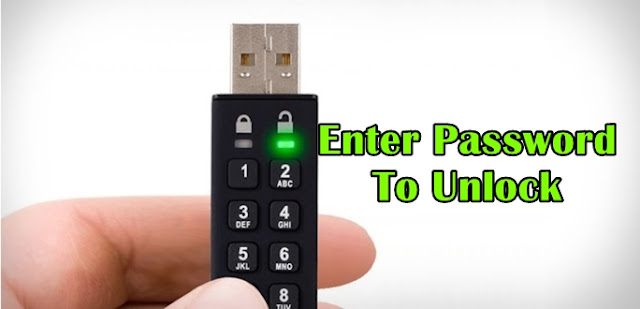
Protect Your USB Pendrive With Password - 3 Methods
We are going to share an interesting article
on protecting your USB Pendrive with password. We've mentioned below two
working methods which you can use for same.
Today in this computer environment, everything is based on data
alteration that you functions within the compact memory storage device that is
the memory card, pen drives, and Hard drive etc. But sometimes certain media
storage device contains some sensitive data that we might not aspire to share
with anyone so at such point, we have to hold our data protected in these
manageable drives.
This method is very simple and easy and with this
implementation, you will be securing your drive with a password that needs to
be entered every time you insert that drive into the computer. The feature is
by default available in Windows operating system and you just have to follow
some simple steps below to proceed with this method.
Method #1: Protect USB Pendrive
With Password Using BitLock
Step 1. First of all, insert
USB Pendrive into your computer.Now right click on the drive and select Turn on
BitLocker.
Step 2. Now click on Use
password to protect the drive. Now enter the password you want to set in both
the password fields.
Step 3. Now click on next and next and print or save the key for
future reference.
Step 4. Now encryption
process will start and your drive will get secured with the password that you
have set.
Method #2: Protect USB Pendrive
With Password Using Wondershare
Step 1. First of all
download and install Wondershare USB Drive Encryption from here.
Step 2. Now open the
software and insert the pen drive into your computer. Now select your drive in
the program and select the amount as complete to fully secure your drive. Now
click on installbutton.
Step 3. Now enter the username
and password that you want to set for your USB Pendrive.
After this, click on Ok and that’s it! You are done with
protecting your USB Pendrive with username and password
Method #3: Using DiskCrytor
DiskCryptor is an open encryption solution
that offers encryption of all disk partitions, including the system partition.
The fact of openness goes in sharp contrast with the current situation, where
most of the software with comparable functionality is completely proprietary,
which makes it unacceptable to use for protection of confidential data.
Step 1. You need to open
DiskCryptor after installing and then click on the USB drive and from the
interface, you need to click on Encrypt
Step 2. A popup window will
open and ask you to select the encryption process. Let it be what it didn't
alter any change unless you have something special in your mind. Then simply
click Next
Step 3. On the next
windows, you need to enter and confirm the password. Make sure! You put a
strong password there and then click on OK to start the encryption.
Step 4. After the encryption process completes, click on the USB drive and
then click on Mount
That's it! Now every user needs
to enter the password in order to view content inside the USB Drive.