How to Block Pop-Up Ads on Android Phones (Complete Guide for All Popular Brands)
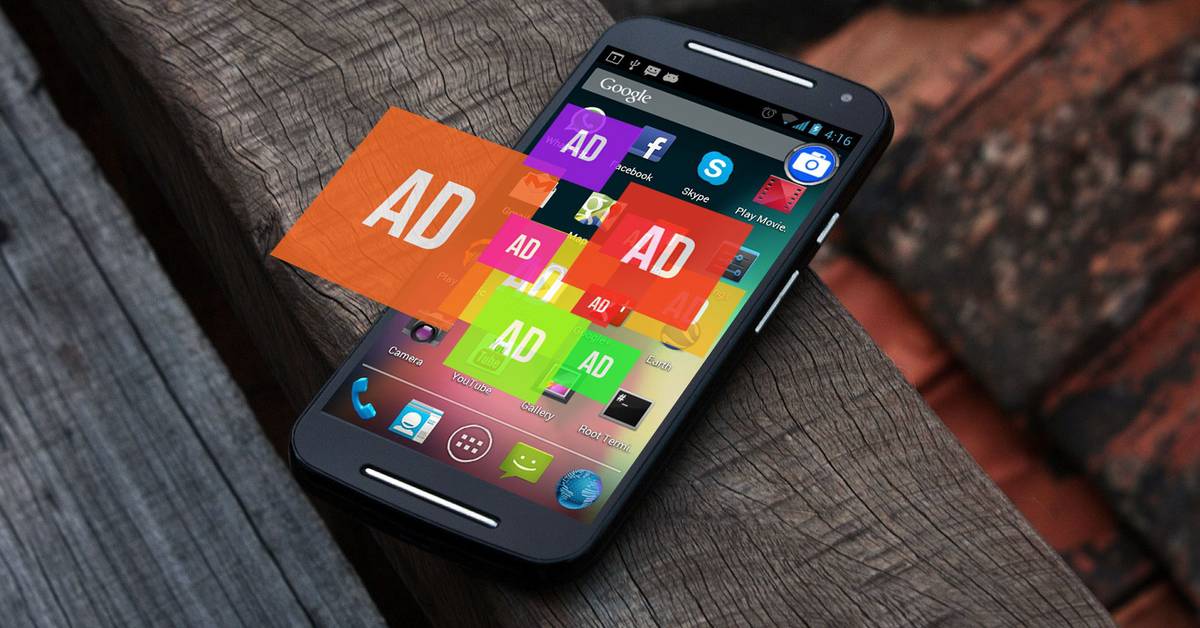
Pop-up ads are among the most annoying interruptions smartphone users face whether they appear while browsing, using apps, unlocking the screen, or even when the phone is idle. These ads usually come from system recommendations, aggressive apps, or poorly configured settings.
The good news?
There are safe, legal, and effective methods to block ads across all major Android phones. No rooting, no risky downloads, and no complicated hacking.
This guide walks you through:
-
How to disable ads on Tecno, Infinix, Samsung, Xiaomi, Oppo, and Vivo
-
The best trusted apps & tools for ad blocking
-
Smart tricks to reduce system-wide ads
-
Tips to prevent future ad infections
Let's dive in.
How to Block Ads on Popular Android Phone Brands
Below are step-by-step instructions for the most commonly used smartphone brands.
1. TECNO (HiOS)
Tecno phones often show personalized content and recommendations. Disable them using these steps:
Disable HiOS Launcher Ads
-
Long-press the Home Screen
-
Tap Desktop Settings
-
Turn off:
-
Instant Apps
-
Zero Screen / Feed Ads
-
Disable App Recommendations
-
Open Settings
-
Tap Apps & Notifications
-
Go to App Management
-
Turn off:
-
App Recommendations
-
HiOS Suggestions
-
2. INFINIX (XOS)
Like Tecno, Infinix uses XOS, which includes built-in ad suggestions.
Turn Off XOS Content Recommendations
-
Go to Settings
-
Select Apps & Notifications
-
Open App Management
-
Disable:
-
XOS Suggestions
-
App Recommendations
-
Disable Ads in Launcher
-
Long-press Home Screen
-
Tap Menu + Settings
-
Turn off:
-
Feed
-
App Suggestions
-
3. SAMSUNG (One UI)
Samsung generally has fewer ads, but some personalized recommendations may appear.
Turn Off Personalized Ads
-
Open Settings
-
Tap Privacy
-
Select Ads
-
Enable Opt Out of Ads Personalization
Disable Ads in Samsung Apps
For example, Galaxy Store:
-
Open Galaxy Store
-
Tap Menu + Settings
-
Turn off:
-
Marketing Notifications
-
Personalized Promotions
-
4. XIAOMI / REDMI / POCO (MIUI or HyperOS)
These phones are notorious for system ads. Disabling MSA (MIUI System Ads) is crucial.
Turn Off MSA (Most Important Step)
-
Go to Settings
-
Tap Passwords & Security
-
Select Authorization & Revocation
-
Turn off MSA
Disable Ads in System Apps
File Manager:
-
Open File Manager + Settings + About + Turn off Recommendations
Security App:
-
Open Security + Settings + Disable Receive Recommendations
Downloads App:
-
Open Downloads + Settings + Turn off Show Recommended Content
5. OPPO (ColorOS)
Disable Ad Services
-
Go to Settings
-
Tap Privacy
-
Select Ad Services
-
Turn off:
-
Personalized Ads
-
App Recommendations
-
6. VIVO (FuntouchOS)
Turn Off Ads & Recommendations
-
Go to Settings
-
Select Privacy
-
Open Ads & Recommendations
-
Disable all available recommendation options
Best Free & Safe Apps/Tools to Block Ads on Android
These apps are available on Google Play Store, safe for all ages, and require no risky permissions.
1. Brave Browser (Built-in Ad Blocker)
-
Blocks pop-ups, tracking scripts, and banner ads
-
Works automatically no extra setup needed
-
Fast, secure, and user-friendly
2. Opera Browser (With Ad Blocker)
-
Has a reliable built-in ad blocker
-
Includes a free VPN
-
Great for users who want simplicity
3. Firefox + uBlock Origin Add-on
This combination is extremely powerful.
How to set it up:
-
Install Firefox
-
Open Add-ons
-
Enable uBlock Origin
Blocks:
-
Pop-ups
-
Video ads
-
Tracking scripts
-
Malware-style ads
Smart Tricks for System-Wide Ad Blocking on Android
Even without special apps, you can reduce ads using the following methods:
A. Disable Appear on Top for Suspicious Apps
-
Go to Settings + Apps
-
Tap Special app access
-
Select Display over other apps
-
Turn off apps you don't recognize
This stops apps that force pop-ups on your screen.
B. Use Play Protect (Built-in Security)
-
Open Google Play Store
-
Tap your Profile Icon
-
Select Play Protect
-
Perform a Scan
This removes harmful apps that generate ads.
C. Uninstall Recently Installed Adware Apps
If ads started recently, check apps installed in the last few days and remove unfamiliar ones.
D. Use Browsers With Ad Blocking Features
Switching from Chrome to Brave/Opera/Firefox can eliminate 80 - 90% of web ads instantly.
Conclusion: Enjoy an Ad-Free Android Experience
Pop-up ads can ruin your browsing and slow down your phone, but with the right settings and tools, you can restore a clean, smooth experience.
By following this guide whether you're on Tecno, Infinix, Samsung, Xiaomi, Oppo, or Vivo—you can:
-
Disable system ads
-
Stop pop-ups from apps
-
Protect your privacy
-
Browse without interruptions
For the best results, combine phone settings + an ad-blocking browser.